Using the EPUB Document Format on Documents from the MPHS Website
Hello, I'm the /base/fo_epub/index.md

Introduction
The Military Postal History Society (MPHS) offers a number of documents in electronic formats. This web page describes how to view the EPUB files published by the Society.
The EPUB format is an international standard for electronic books. It is described on the Wikipedia EPUB Discussion. This reading format is used by nearly all electronic readers EXCEPT Amazon Kindle. By contrast, it is the typical format read by the NOOK device. A typical example might include:
Al Kugel’s Naval Aviation in the Adriatic Article
When you right-click on the above link, you will have the option to “Save As” or “save link as” onto your computer, phone, or tablet drive. Some systems allow you to click directly on the above links, and will provide the option to “Save” the EPUB file.
At this point, you should have one or more “.epub” files on your computer, phone, or tablet.
The following sections describe the many ways that you can read EPUB documents on different devices:
Import and Read EPUB File Using Google Books
The Google Play Books app is available on various phones and tablets. You can upload and read EPUB-formatted books using this app. See: this article on uploading EPUB books into the Google Play Books app.
In addition, Google Play Books is available on your browser when you are using a computer. Go to this link: to upload and read EPUB books on the Google Play Books website.
You must have a Google account to use this service. (NOTE that if you have an Android smartphone, you have a Google account by default.)
View EPUB File Using Firefox Web Browser and EPUB Reader Addon
If you use the Firefox web browser on your computer, you can read EPUB-formatted book files directly in your browser by using an “Addon” software package. See: EPUB Reader Addon for Firefox Browser.
Copy EPUB File to Computer, Tablet, or Phone with Reader Software
There are a large number of EPUB reader software packages for computers, phones, and tablets.
Copy EPUB File to Android Phone with Reader Software
On the Android phone, you start an EPUB reader program, and either “open” the EPUB file, or “add to bookshelf”. Note that you can read EPUB files using several Apps on Android phones and tablets, including : “Moon+ Reader”, “FBReader”, “Cool Reader”, “Aldiko”, “Mantano Free Reader”, and others.
Copy EPUB File to Windows Computer
This article about various EPUB readers for Windows contains useful information.
In particular, Adobe Digital Editions software for Windows handles these EPUB files quite well. When you execute the Digital Editions software, you simply use the “add to bookshelf” option to insert your EPUB file into the reader. Note that this program is now also available on smart phones.
Viewers
Another EPUB viewer available on Windows and other systems is embedded in a free document creator called Calibre. This document convert/creator comes installed with viewers for all popular electronic publication types, including a Kindle and EPUB viewer.
Additionally, the Okular program, which is free and open source, can read EPUB files. Versions are available for Windows, Mac and Linux systems.
Note that the Okular document viewer, mentioned above, can read and display a wide variety of files, from images, to PDF to EPUB. See their documentation (link above) for the formats available.
Copy EPUB File to Other Computer Systems
We are not as familiar with the Apple iPhones and iPads as we are with Windows and Android. Check this article on using MOBI and EPUB files on the iPhone and Ipad for more information.
There are several EPUB readers available on Linux systems, including FBReader (with versions for Windows and MACOS), as well as Calibre and Okular (mentioned above).
NOTE FOR KINDLE USERS
By default the Kindle(tm) program or device does not directly process EPUB files. However, Amazon has added a feature for Kindle accounts, that allows you to “upload” EPUB files to your Kindle app or device for reading.
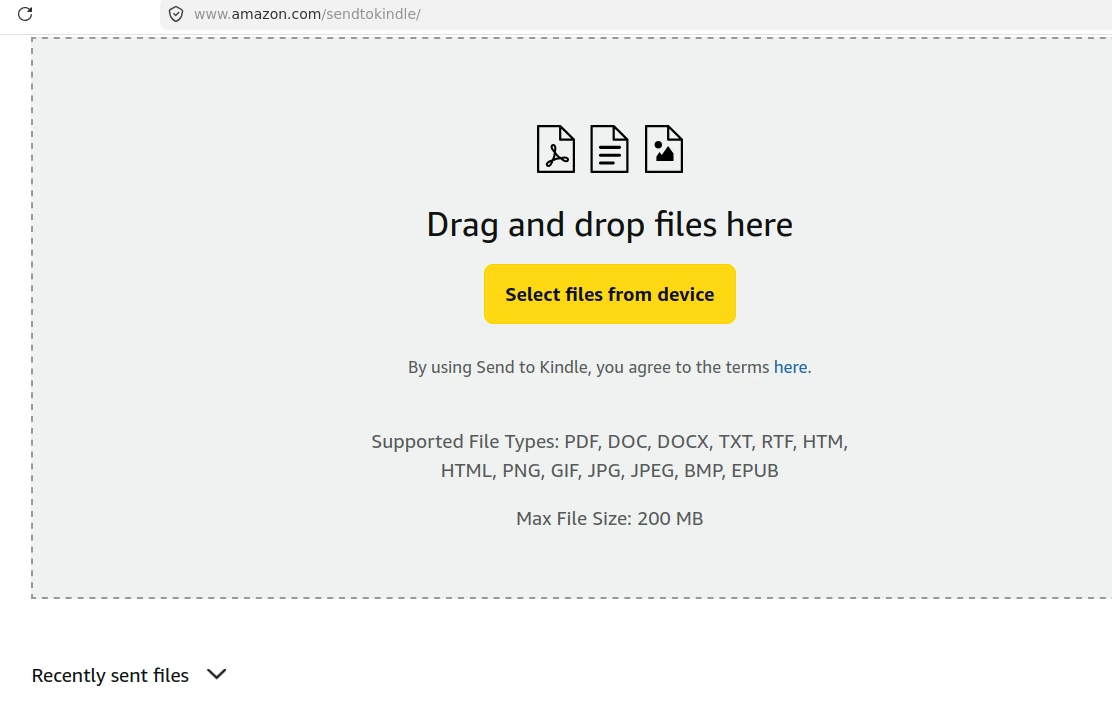
Amazon Send to Kindle Display
After you provide the desired EPUB file to the Amazon website, the Amazon systems will convert it from the EPUB format to a format acceptable to their reading devices. It will then automatically download it to your device and/or reader.
Using this system eliminates the complications brought about when trying to “sideload” an external book into a Kindle device.
See the Kindle page for more information.
EPUB File Issues
Our experience with EPUB format is generally good. Most of the readers can handle interactive content (where you click on a link and move to a different part of the document). For us, however, the chief drawback seems to be illustrations. While the Kindle does a pretty good job of handling images, the images in an EPUB reader seem to be fixed in size, and you may not be able to zoom into an illustration, using most EPUB readers.
Note that Calibre (mentioned elsewhere on this page) does allow separate viewing and zooming of images. For this reason, the Society has decided to not publish exhibit pages, such as those from Al Kugel, in the EPUB format. We believe that we can provide several other formats that do a better job of displaying these exhibit pages.
Additional Links
Back to Document Formats PageBack to Main MPHS Page
Technical Information
Website Created with HUGO using no theme
Content Updated
Sat Jun 20 03:30:55 PM CDT 2026